Store Rating

Your Feedback is Important. Please Help Us Meet Your Expectations

Flip Book Menus


CATEGORIES

Shopping Basket
Your basket is empty.
Check Out  |  Help

LOG IN
Email Address:
Password:
Forgot Password
Register Now

CONTACT US
The Leaping Frog Shopping Centre, Corner William Nicol Drive & Dr. Mulbarton Road, Fourways, Sandton
+011 465 2231 Telephone:
E-mail: info@humbleharrys.co.za
 
The BUZZ Shopping Centre, Witkoppen Rd, Fourways, Sandton
+011 658 0178 Telephone: 
E-mail: info@humbleharrys.co.za

Back to - Other - 
Product Details
Click to Enlarge
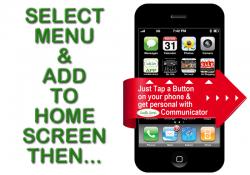
How to Add this Communicator App to your Phone Home Screen

 Note: No notes for this product
 Product Number:
 

 Country/Territory: South Africa


Share & spread the word:
Share


Description
Add A Review
Reviews

​

There are a variety of mobile phone operating systems and a few desk top computer operating systems. 
How to add a button to your home screen is similar for most phones. 
The following applies to Android and iOS devices.
​
iPhones & IPads:
  1. Select Menu
  2. Select > Add to Home Screen
  3. Edit and short​en the Button Name
  4. That\\'s It
​Android Phones & Tablets
  1. Select Menu
  2. Select > Add to Home Screen
  3. Edit and shorten the Button Name
  4. That\\'s It.
​


Email this pageBookmark this page Print this Page Login
Link to our WebsiteFind Us On FacebookHumble Harry's on InstagramHumble Harry's Communicator AppMenus